
Connect real-time financial data to your AI assistant
Overview
Trendlyne MCP (Model Context Protocol) enables AI assistants to access live, structured and unstructured financial data directly from Trendlyne's servers.
This eliminates hallucinations and ensures your AI-powered research and decision-making is grounded in accurate, real-time market data.
Prerequisites
Before you begin, make sure you have the following ready:
A Trendlyne MCP subscription (see Step 1)
The Mistral website opens in your browser
Your Remote MCP server URL (provided after subscription)
Setting up Trendlyne MCP on Claude
Step 1: Buy a Trendlyne MCP subscription
Visit trendlyne.com and navigate to the MCP section. Choose a subscription plan that fits your research needs and complete the purchase. Click here for a step-by-step guide for the subscription process.
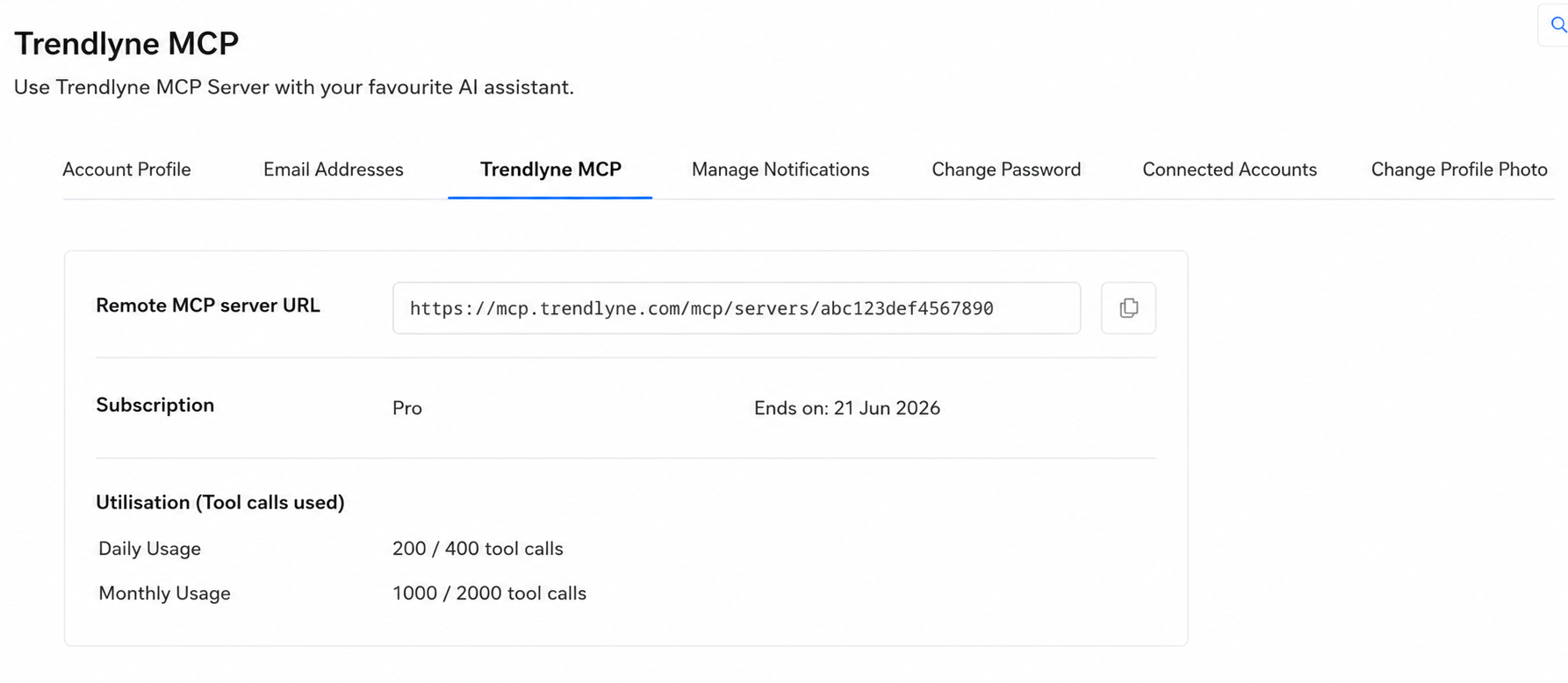
Step 2: Get your remote Trendlyne MCP server URL after subscription
Step 3: Open your browser and go to Mistral and sign in to your account.
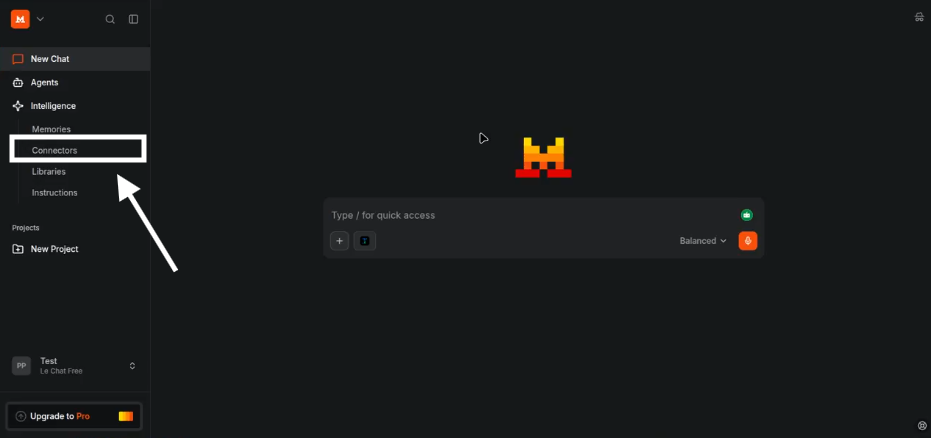
Step 4: Click on ‘Connectors’ on the menu, as shown in the screenshot
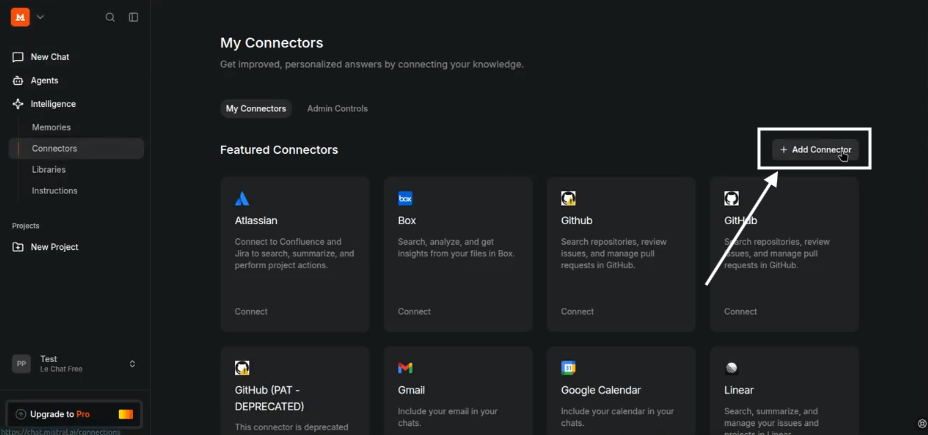
Step 5: Click on "Add Connector" Inside the modal. This will allow you to add connectors.
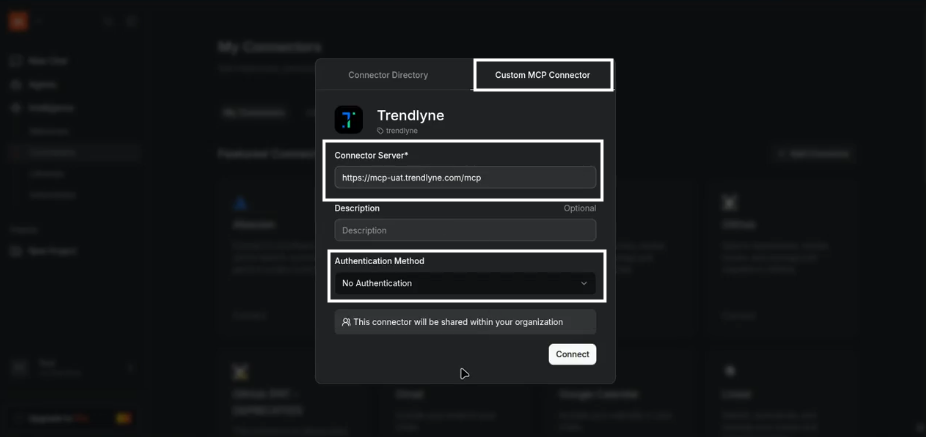
Step 6: In this section, click on ‘Custom MCP Connector', name your app, add the MCP Server URL and change the authentication to ‘No Authentication’, and click on the Connect button.
Step 7: Once this is completed, click on ‘+’, More, and choose the Connector (Trendlyne) that you just added.
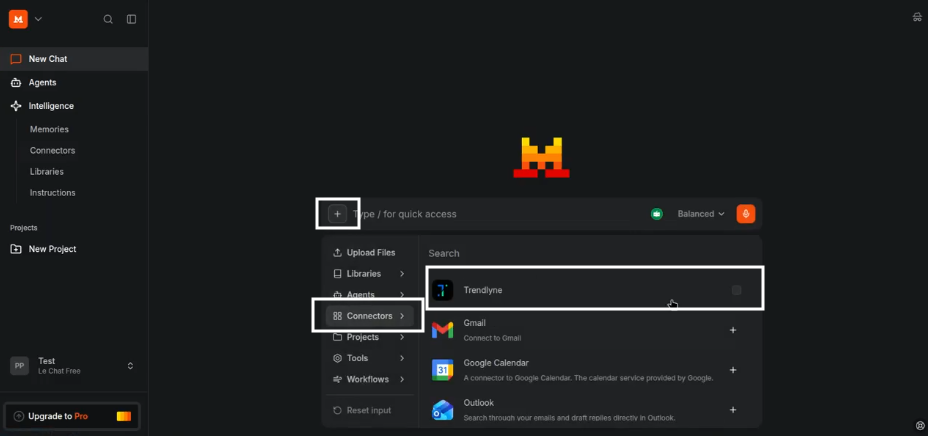
Step 8: Start asking questions
You're all set! Ask any financial research or market data questions. Mistral will query the Trendlyne MCP server and present the data in a clean, concise format for your decision-making or research needs.